



You just downloaded your Chatter Batter eBook, your child is ready for story time, and now you’re staring at a PDF wondering:
How do I actually get this onto my Kindle?
Before you spend five minutes figuring that out, here’s something you may want to know:
You might not need to put it on your Kindle at all.
Because Chatter Batter books are illustrated picture books, there’s a good chance your phone or tablet is actually the easiest way to read them.
Let’s start there.
First, try this: Just open the PDF on your phone or tablet
If you downloaded the Chatter Batter PDF to your phone, iPad, or tablet, you can usually open it directly from your Files app or downloads folder.
Tap the PDF and start reading.
That’s it.
You don’t have to send it to your Kindle. You don’t have to change any settings. You don’t have to find a special Kindle email address.
And for an illustrated children’s book, there is another advantage:
You get to see the illustrations in full color.
Basic Kindle e-readers are designed primarily for text and many use black-and-white E Ink displays. That’s fantastic for novels and chapter books, but illustrated picture books are a different story.
If you’re reading Chatter Batter with your child at bedtime, a phone, iPad, or tablet may actually give you the better experience.
So if you’re thinking, “I just want to read the book tonight,” try opening the PDF directly first.
Problem solved.
But if you specifically want the PDF on your Kindle, you’ve got several easy options.
| Speech practice doesn’t have to feel like correction. Discover simple, joyful ways to connect with your child through everyday conversation — the kind that builds confidence, not pressure. Get the Speech Practice Guide. |
Option 1: Send it to your Kindle with Amazon’s Send to Kindle
This is probably the easiest way to put a PDF on your Kindle without messing with email settings.
- Go to amazon.com/sendtokindle and sign in to your Amazon account.
- Upload your PDF by dragging it into the window or selecting it from your files.
- Choose the Kindle or Kindle app you want to send it to.
- Click Send.
- Connect your Kindle to Wi-Fi and give it a few minutes to appear.
That’s it.
No Kindle email address to find. No approved sender settings to configure.
If you only remember one method from this article, this is probably the one to remember.
Option 2: Email the PDF directly to your Kindle
This is the classic Kindle method, and it still works well.
Every Kindle has its own unique email address ending in @kindle.com.
Step 1: Find your Kindle email address
On Amazon, go to Manage Your Content and Devices.
Select the Devices tab and choose your Kindle.
You’ll find the Kindle’s personal email address there.
Step 2: Approve your email address
This is the step that catches a lot of people.
Amazon only allows documents to be sent from approved email addresses.
Go to your Amazon account’s Preferences, find Personal Document Settings, and look for the Approved Personal Document E-mail List.
Add the email address you’ll be sending the PDF from.
Step 3: Email the PDF
Create a new email, attach your Chatter Batter PDF, and send it to your Kindle’s @kindle.com address.
Then connect your Kindle to Wi-Fi and give it a few minutes.
One important tip for picture books
You may see advice telling you to put Convert in the subject line of the email.
That can be useful when you’re sending something like a novel and want Amazon to convert it into a Kindle-friendly format.
But for an illustrated picture book, you generally want to preserve the original page design.
For Chatter Batter PDFs, send the PDF as-is rather than asking Amazon to reformat it.
That helps preserve the illustrations and page layout.
Option 3: Put the PDF on your Kindle with a USB cable
Prefer doing things the old-fashioned way?
You can transfer the PDF directly from your computer to your Kindle.
- Connect your Kindle to your computer with a USB cable.
- Your Kindle should appear as a drive on your computer.
- Open the Kindle and find the documents folder.
- Drag your PDF into that folder.
- Properly eject your Kindle before unplugging the cable.
- Open your Kindle and look for the book.
This method doesn’t depend on Wi-Fi, which can be handy if your Kindle isn’t connecting properly.
The tradeoff is that a file transferred this way doesn’t have the same cloud-based syncing experience as a document delivered through Amazon.
Option 4: Send the PDF to your Kindle app
You don’t necessarily need a physical Kindle to use Amazon’s Kindle ecosystem.
If you have the Kindle app on your phone or tablet, you can use Amazon’s Send to Kindle service to send the PDF to the app as well.
This can be a nice middle ground:
You get the convenience of the Kindle app while still reading on a full-color screen.
For an illustrated children’s book, that’s worth considering.
So which option should you use?
Here’s the simple version:
Want to read the book right now?
Open the PDF directly on your phone or tablet.
Want it in your Kindle library?
Use Amazon’s Send to Kindle website.
Already use your Kindle email?
Email the PDF to your @kindle.com address.
Don’t want to use Wi-Fi?
Transfer the PDF with a USB cable.
And if you’re reading an illustrated picture book with your child, I’d seriously consider the phone or tablet option.
Not because Kindle isn’t great.
It’s because the pictures are part of the story.
Now go read the book
Technology has a funny way of turning a five-minute bedtime story into a 30-minute troubleshooting session.
We’ve all been there.
But once the PDF is where you want it, the tech part is over.
Now you get to do the important part:
Sit down with your child.
Turn the page.
Read together.
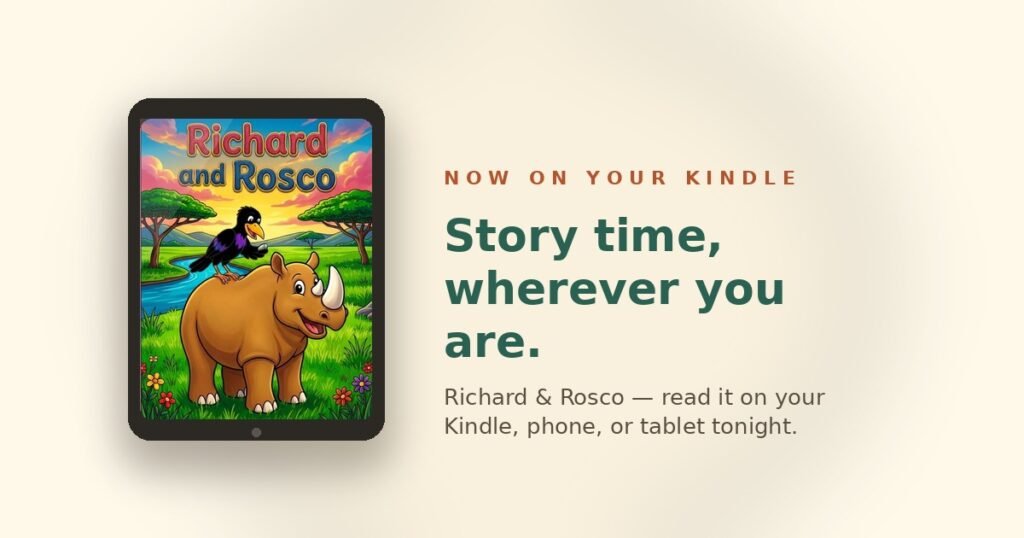
And maybe enjoy a little story about a rhino and a raven who can’t seem to stay out of trouble.
Because at the end of the day, the goal isn’t getting a PDF onto a device.
The goal is getting a parent and child together for a few minutes of connection.
And honestly, that’s the part worth remembering.
Sources:
- Send PDF, EPUB and Other Files to Your Kindle – Amazon Customer Service
- Send to Kindle: The Complete Guide for Every Method (2026) — Stack to Book
- How to send PDF files to Amazon Kindle devices to read them like a book — TechRadar
- Send to Kindle — amazon.com/sendtokindle